Sabtu, 06 April 2013

Mastering Joomla! 1.5 Extension and Framework Development, 2nd Edition


Mastering Joomla! 1.5 Extension and Framework Development, 2nd Edition
Packt Publishing | 978-1-84951-052-3 | PDF | 560 pages | 3.05 MB

Joomla! is one of the world's top open source content management systems, which enables you to build websites and powerful online applications. Out of the box, Joomla! does a great job of managing the content needed to enhance the functionality of your website. But for many people, the true power of Joomla! lies in its application framework that makes it possible for thousands of developers around the world to create powerful add-ons and extensions.

Download

Server 1 

Server2

game Potshot Pirates 3D v1.08 (Android)

Famous pirate Joe Elusive had hidden untold wealth somewhere in Yokka-Pukka islands, inhabited by people with emerald skin and a sharp temper. But where exactly… He had forgotten. Your job, as a prospective pirate - to find and take away these treasures from brazen green Yokkas by all means.

Requirements: Varies with device
SS
 3D technology allows you approach the island from either side (360 degrees) and select the perfect point for an attack. In addition, you'll need a good eye - pitching, and the waves themselves, looks very realistic.

Shoot in grinning insolent green targets with nucleus or buckshot; destroy wood, glass, steel and stone building - and refund your pirate gold. The better result - the more gold and higher ratings. With gold you can win over even the Kraken - a huge octopus, sweeping the whole village with his mortal hugs!

Game Features:
• More than 100 colorful levels, including the original geolocations, which opens, depending on the player’s location.
• A realistic highly detailed 3D graphics
• The ability to summon destructive Kraken
• Different nucleuses with different characteristics
• Touch-based controls
• Different weather conditions at different levels
• Realistic water, which can be touched


More Info

Download  server 1

Download  server 2

Download  server 3


game Angry Birds Star Wars HD v1.2.1 (Android)

Angry Birds Star Wars HD v1.2.1 (Android) | 45 MB
A long time ago in a galaxy far, far away... a group of desperate rebel birds faced off against a galactic menace: the Empire’s evil Pigtroopers!
Rebel birds, striking from a hidden base, have won their first victory against the evil Imperial Pigs. During the battle, Rebel spies managed to steal secret plans to the Empire’s ultimate weapon, the PIG STAR, and are racing to deliver the plans to the Rebel Birds. Now they need your help!


Requirements: Android 2.2 and up

Join an epic adventure with the Angry Birds in the legendary Star Wars™ universe! Use the Force, wield your lightsaber, and blast away Pigtroopers on an intergalactic journey from the deserts of Tatooine to the depths of the Pig Star -- where you’ll face off against the terrifying Darth Vader, Dark Lord of the Pigs! Can you become a Jedi Master and restore freedom to the galaxy?

Time to grab your lightsaber and join the adventure! May the birds be with you!


HOURS AND HOURS OF ENGAGING GAMEPLAY - Explore more than 100 levels in iconic locations like Tatooine and the Pig Star. Can you dodge Imperial pigs, laser turrets, Tusken Raider pigs, and the dark side of the Force to get all three stars?

NEW GAMEPLAY MECHANICS - Use lightsabers, Blasters and Jedi powers to wreak havoc on the Imperial Pigs!

LEVEL UP YOUR BIRDS - Keep playing and level up your birds to improve their skills!

SECRETS AND HIDDEN GOODIES - Can you unlock all the R2-D2 and C-3PO bonus levels?

FREE UPDATES - This is only the beginning of the epic saga!

THE MIGHTY FALCON
Stuck on a tricky level? Earn stars and call the Mighty Falcon to rain down the destruction. New goals, achievements and gameplay!

PATH OF THE JEDI
The ultimate training ground for a Young Jedi, this episode features 40 Dagobah Challenge Levels with Jedi Master Yoda! Master the Path of the Jedi to unlock the ultimate Lightsaber!

Download Link
1.  Dowload (Rapidgator.Net)

2. Download (Upload.net)

3. Dowload (extabit.Net)

Jumat, 05 April 2013

Cara Membuat Blogger Followers Widget / Google Friend Connect Widget

Kali ini saya akan coba share sebuah cara untuk mendapatkan Blogger Followers Widget / Google Friend Connect Widget.

Seperti telah kita ketahui, setelah adanya Google+ Followers Widget, maka untuk Blogger Followers Widget / Google Friend Connect Widget sudah tidak bisa kita temukan pada list gadget di Tata Letak atau Layout. Karena memang Google sebagai si empunya Blogger lebih merekomendasikan Google+ Followers widget untuk ditrapkan di blog atau website.

Nah bagi yang masih ingin memasang Blogger Followers Widget / Google Friend Connect Widget di blognya, maka kali ini saya mencoba memberikan sedikit tutor untuk mereka yang belum mengetahui dan kebingungan cara membuat Blogger Followers Widget / Google Friend Connect Widget di blog.
Caranya cukup mudah
1. Anda Harus Tau Id Blog anda
    Kalau saya Belum Tau gmana dong OM ?
    Gampang ...!!
     Silahkan Clik new Entry (entry baru)
    Sebenarnya ketika kita sedang menulis artikel di blog, atau melakukan Pengaturan, Tata Letak,
    dan  sebagainya di akun blogger kita, ID tersebut terletak pada URL yang tertera di browser.
    PErhatikan gambar di bawah.
     
     Nah, pada gambar di atas terlihat ID bog saya yaitu 9178xxx12099909      gampangkan hehehe
      dapat kan ? id Blog anda..!

2. silahkan copy dan paste URL berikut di address bar browser Anda.

http://www.blogger.com/manage-followers.g?blogID=2583045784323XXXXXX
Nah yang berwarna merah itu adalah ID Blog Anda.
Setelah Anda mengganti dengan ID Blog Anda, silahkan reload address barnya (langsung tekan Enter juga gpp )
dan akan masuk ke Blogger Followers Blog Anda. Silahkan klik pada "Add the Followers gadget" untuk mendapatkan Blogger Followers Widget / Google Friend Connect Widget Blog Anda.
Kemudian akan terbuka jendela browser baru Follower Gadget, Anda bisa merubah title gadgetnya sesuai dengan kehendak Anda kemudian klik SAVE untuk menyimpannya di blog Anda. 
Kemudian silahkan Anda masuk ke Tata Letak atau Layout untuk merapihkan letak Blogger Followers Widget / Google Friend Connect Widget yang baru Anda buat, bisa disimpan di sidebar atau footer blog Anda.
Sekian terimakasih Semoga dapat Membantu Anda heheh :D

Managing Windows 8 apps

Certain aspects of Windows apps can be managed through Group Policy. The previous
 section detailed the Group Policy setting to enable LOB Apps to be installed. Other settings
are configured using AppLocker.

Creating the rules for Windows apps involves configuring rules within the “Packaged 
app Rules” section. You can either configure rules manually, use the Automatically  Generate
Rules option, or Create Default Rules from the context menu. Choosing to Create Default
Rules   automatically generates a rule to allow everyone to run all signed apps, as shown in
 Figure  6-19

However, a default rule to allow everyone to run all signed packaged apps may not be a
likely (or very secure) policy for most organizations. Therefore, you can change this policy to
Deny within its Properties dialog, as shown in Figure 6-20.

Once the rule has been changed to a default Deny policy, you can then add exceptions for
apps that will be allowed to run. This is accomplished through the Exceptions tab. Within the
Exceptions tab, shown in Figure 6-21, you can manage the current exceptions.

Adding an exception is accomplished by clicking Add, which reveals the Add Exception
dialog. Figure 6-22 shows the Add Exception dialog box used to configure an exception for
the app developed earlier in this chapter.

In addition to configuring exceptions for individual apps using their app package, you can
also choose to add exceptions using an installed package. In order for this to work, the app
has to be installed on the computer from which you’re using AppLocker. In the case of 
Figure 6-23, AppLocker was run from a Windows 8 Enterprise computer, therefore exceptions
can be granted for any of the apps installed there.

The enterprise scenario here is to configure exceptions for apps that are allowed, while
disallowing apps that an organization doesn’t want its users to run. It’s worth noting that
 exceptions can be configured based on Active Directory group membership, so certain
groups could be allowed to run the Finance or Travel app.

Sideloading an app in windows 8

To create an app package for distribution through sideloading, you must run the Windows
App Certification Kit. The Windows App Certification Kit is part of the Windows 8 Software
Development Kit (SDK) but is also included with Visual Studio 2012. For example, in the
 Express edition of Visual Studio 2012, selecting Create App Package from the Store menu
starts the Create App Package wizard

The first step of the wizard is where you choose whether or not the package will be
 distributed through the Windows Store. Selecting No, as shown in Figure 6-13, displays the
requirements and limitations for this type of distribution

The package settings are configured next, as shown in Figure 6-14


Kamis, 04 April 2013

Distributing within an Enterprise in windows 8

Distributing an app within an enterprise requires the Enterprise edition of Windows 8. As you
might expect, the process for distributing within an enterprise is different than distributing
through the Windows Store. A typical scenario would have a LOB app developed and then
automatically pushed out to computers within the organization. Aside from the edition of
Windows 8 being used, there are three primary requirements for sideloading apps:
  ■ The target computer must be joined to the domain.
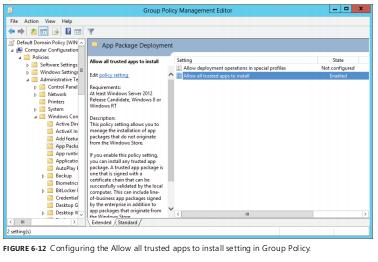
  ■ Group Policy must be set to “Allow all trusted apps to install.”
  ■ The app must be signed by a Certificate Authority (CA) that is trusted by the target
computer.
The Group Policy setting is found within the Windows Components\App Package
 Deployment hierarchy, as shown in Figure 6-12


Distributing in the Windows 8 Store

Distributing an app through the Windows Store involves several steps, including creating a
developer account, accepting various terms of service agreements, submitting the app for
approval, and setting its terms, among other things.

As described in the “Windows 8 app certification requirements” (http://msdn.microsoft.com/
library/windows/apps/hh694083.aspx ). Microsoft has several requirements for Windows apps:
  ■ The app must provide value.
  ■ The app must provide more functionality than a simple website.
  ■ The app must behave predictably.
  ■ The app must adhere to privacy and security practices.
  ■ The app’s content and subject matter must be appropriate for many audiences.
  ■ The app must be identified easily with a unique name and other information.

The certification process

The certification process to distribute an app through the Windows Store is a multistep
process. In the first step of the process, the app package is uploaded to Microsoft where it’s
checked for compliance with various app certification requirements
Among the tests that Microsoft performs are the following:
1.   Security tests, which are fairly basic malware-type scans.
2.   Technical compliance tests. The Windows App Certification Kit is used to test the app
      for compliance. The Windows App Certification Kit can also be used by the developer
      prior to submission in order to perform the same tests and help ensure a successful
      test when performed by Microsoft.
3.   Content compliance tests. The final test prior to release, the content compliance test is
     a manual process performed by someone at Microsoft.

When an app is approved, Microsoft performs digital signing of the app to prevent
 tampering, and then publishes the app to the Windows Store. However, you can set the
 release date and other aspects of the app, as described in the next section.

The app purchase experience

When potential customers find your app through the Windows Store, it’s your chance to
entice them to install or purchase your app. You do this by setting up a page on the  W indows
Store for your app. Your app’s page contains at least one screenshot (though more are
 encouraged) and other details about your app, such as its description, purchase price, rating,
and other details pertinent for the potential customer to know.

You choose the pricing model and structure for app distribution. You can offer the app for
free, provide a time-limited trial, a feature-limited trial, or set a price for the app that must
be paid prior to download. You can also set up in-app purchases to sell additional features
to customers. A frequent model for apps is ad-supported, whereby the app is offered for
free but then advertisements are displayed within the app. You can use any ad platform that

meets Microsoft’s certification requirements—which offers great flexibility to obtain the
 highest revenue for an ad-supported app.

Using Visual Studio to build a Windows 8 app

This section demonstrates how easy it is to build a Windows App. The demonstration shown
here will use Visual Studio 2012 Express edition for Windows to build an App. This example
builds a simple app that shows a list of the files inside of the Documents library on the
 computer and enables the user to select a file

The first step in building a Windows app is to choose a programming language and an
appropriate template. We’ll use JavaScript with the Blank App template for this example. This
is shown in Figure 6-5.

Once a template is chosen, Visual Studio opens the code for the chosen template. In this
case, the code is shown in Figure 6-6.

Visual Studio takes care of all of the behind-the-scenes setup and configuration for the
app based on the chosen template. This means that you could compile and run the project
as-is and it would display. In the case of the Blank App template, a blank screen with a simple
“Content goes here” note is displayed

Creating an app using one of the templates requires using the helper functions (created
automatically by the template), and then customizing and adding to them to produce the
app. In this example, we’ll add a single function to access some built-in functions that create a
File Picker.

With that code in place, the next area of customization needed is within the HTML file. The
Blank App template includes a default HTML file. The file, aptly titled default.html, contains
basic HTML and also the links to include CSS and JavaScript for the app. This file is shown
when the app is loaded, though this can be changed to start with any file that is appropriate
for your app.

For the example here, we’ll customize default.html for our needs. Specifically, we’ll add
some HTML, JavaScript, and also some CSS to the file. Like the JavaScript example, in a
 real-world scenario where you’re building a more complex app, it’s likely that the CSS would
be in a separate file and that the JavaScript would be as well.

The bottom portion of default.html is shown in Figure 6-8, with the new items highlighted
(the code above this in default.html is not changed).

With default.html saved, the app can be run, typically by pressing F5. The app’s splash screen
is shown and then the app is loaded. The output of the initial screen is shown in Figure 6-9.
Clicking or tapping the “Get Files List” button reveals the File Picker screen, shown in
 Figure  6-10.

The File Picker screen is built and its interface is set up primarily by the built-in functions
available as part of the Windows app library. This provides a consistent interface for the  
user when choosing files on the Windows 8 platform. Once a file has been chosen it  receives
a checkmark (like the one shown in Figure 6-10). Clicking or tapping Open then hands

 processing to your app, where you can perform the appropriate action for the file. In this case,
we merely output the name of the file back to the original screen, as shown in Figure 6-11.


This demonstration shows how easy it is to create a Windows app. In just a few lines of
JavaScript, HTML, and CSS, an app was created to choose files from the Documents library  
of a computer.

Once an app is created, it needs to be distributed. App distribution is accomplished either
by making the app available in the Windows Store or by loading it for internal-use only
through a process called sideloading . Both of these distribution methods are the focus of the
next two sections.

Building a Windows 8 app

Any edition of Visual Studio can be used to build apps for Windows. Though most
 organizations will use the Professional, Premium, or Ultimate version of Visual Studio, the
Express edition for Windows also includes the necessary Software Development Kit (SDK) for
developing Windows apps.

         When an App is built, it becomes an App Package. The App Package contains the files for
the App along with the package manifest. The package manifest contains information about
the App, including how it interacts with the computer or device, what resources it needs, and
so on

         Organizations can continue to use their language of choice for developing Windows apps.
For example, an organization standardized around Visual C# development with the requisite
in-house expertise can continue to use Visual C# for Windows App development. One of the
most powerful features of Windows apps is that they can be built using several languages:
  ■ JavaScript
  ■ Visual Basic
  ■ Visual C#
  ■ Visual C++

       Among these languages, Visual Basic, Visual C#, and Visual C++ are traditional client-side
languages that can be used to build server-side web applications. However, the addition of

      JavaScript is noteworthy for Windows app development. The inclusion of JavaScript in the
available languages for Windows app development means that organizations with expertise
in HTML, CSS, and JavaScript can build fully functional Windows apps that have the same
capabilities as apps developed in the other languages.

        Visual Studio includes five templates customized for each of the available Windows
App development languages. The templates help with the development process and show
 common design patterns and layouts for Windows apps. Some of the templates are shown in
Figure 6-2.

      The five templates provide a good sampling of the design patterns needed for many types
of apps. The type of information and user interaction expected for the app drives the choice
of template. For example, an app that needs to display more than one item might choose a
Grid App template, such as the one shown in Figure 6-3

      An app that needs to enable drill-down for detailed information might choose a Split App
template, such as the one shown in Figure 6-4.

       If one of the available templates isn’t appropriate, the developer can use Blend to design
the layout for the app